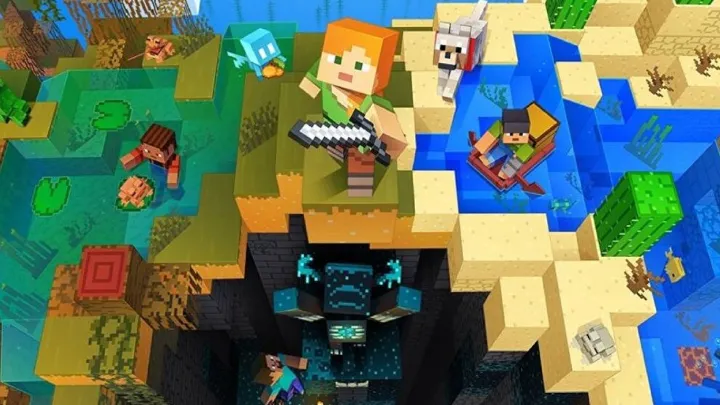
In the vast and ever-evolving landscape of video games, few titles have achieved the monumental and enduring status of Minecraft. Developed by Mojang Studios and later acquired by Microsoft, this iconic sandbox game has transcended simple entertainment to become a global phenomenon, a tool for creativity, education, and social connection. For aspiring players eager to begin their blocky adventures, the first and most crucial step is understanding the correct, secure, and authoritative process for acquiring the game. This guide, crafted with the precision of a seasoned industry expert, will meticulously detail the multi-platform download and installation procedure, ensuring a seamless and secure entry into the world of Minecraft without a single URL in sight.
The Minecraft Ecosystem: Understanding Your Options
Before you begin the download process, it's essential to understand that "Minecraft" is not a monolithic entity. The game exists in two primary versions, each with its own ecosystem, features, and download method. The correct choice depends on your preferred device and desired experience.
1. Minecraft: Java Edition
This is the original version of the game, famous for its deep modding community, vast multiplayer servers, and cross-platform play between Windows, macOS, and Linux. The Java Edition is ideal for players who want to explore user-created content, customize their gameplay, and join a vibrant, long-standing community.
2. Minecraft: Bedrock Edition
Also known as the "cross-platform" version, the Bedrock Edition is designed for a wider range of devices. This includes Windows 10/11, Xbox, PlayStation, Nintendo Switch, and mobile devices (Android and iOS). The Bedrock Edition features a unified marketplace, seamless multiplayer across all supported platforms, and enhanced performance on less powerful hardware.
Downloading the Game: A Platform-Specific Breakdown
The method you use to download Minecraft is entirely dependent on the version you've chosen and the device you're playing on. We'll break down the process for each major platform.
How to Download Minecraft: Java Edition (PC)
The process for acquiring Minecraft: Java Edition is a streamlined, two-step process handled directly by Mojang and Microsoft.
Step 1: The Account and Purchase
Your journey begins by visiting the official Minecraft website. This is the sole authoritative source for purchasing the Java Edition. Once there, you will be prompted to either sign in with an existing Microsoft account or create a new one. It is crucial to use an official Microsoft account, as Mojang has migrated all accounts to this more secure system. After signing in, you will be directed to the purchase page. The Minecraft: Java & Bedrock Edition for PC bundle is the standard option, as it grants you access to both versions for a single price. Complete the purchase using a valid payment method.
Step 2: The Minecraft Launcher
Once your purchase is complete, you will be prompted to download the Minecraft Launcher. This is the central hub for playing both the Java and Bedrock editions on your PC. It’s a small program that manages the game's installation, updates, and profile settings. Install the launcher on your computer by following the on-screen instructions. Once the launcher is installed, sign in with the same Microsoft account you used for the purchase. The launcher will automatically recognize your ownership and present you with the option to download and install Minecraft: Java Edition. The launcher will handle the entire installation process, downloading the necessary game files and placing them in the correct directory. You can also use the launcher to switch between different versions of the game, manage your installations, and access official servers.
How to Download Minecraft: Bedrock Edition
The download process for the Bedrock Edition is much like acquiring any other game on its respective digital storefront.
On Windows 10/11
Minecraft: Bedrock Edition is available through the official Microsoft Store, which comes pre-installed on all Windows 10 and Windows 11 PCs. Simply open the Microsoft Store app, search for "Minecraft," and you'll find the Bedrock Edition page. If you purchased the Java & Bedrock Edition for PC bundle, the store will recognize your ownership and allow you to install the game at no additional cost. Otherwise, you can purchase it directly from the store. The Microsoft Store handles all the download, installation, and update processes automatically.
On Xbox, PlayStation, and Nintendo Switch
For console platforms, Minecraft: Bedrock Edition is available on their respective digital storefronts. On Xbox, use the Microsoft Store. On PlayStation, use the PlayStation Store. On Nintendo Switch, use the eShop. Navigate to the store on your console, search for "Minecraft," and you will find the Bedrock Edition. You can purchase and download it directly from the console's store. The consoles handle the entire installation process.
On Mobile Devices (Android and iOS)
For mobile players, Minecraft is available on the official app stores. For Android, use the Google Play Store. For iOS, use the Apple App Store. Open the store, search for "Minecraft," and you will find the official game page. The mobile app is a paid purchase. Once you've completed the transaction, the download and installation are handled automatically by the app store.
The Installation and Launch Process
Once you've initiated the download, the installation process is typically automated. Here's a brief overview of what happens and what you can expect.
File Download
The game files will be downloaded to your device's storage. The size of the download can vary, but it's often a few hundred megabytes to over a gigabyte. A stable internet connection is essential to avoid interruptions or corrupted files.
Installation
After the download is complete, the launcher or digital storefront will automatically install the game files. This process involves unpacking the downloaded data and placing it in the correct folders on your system. This step is usually quick and requires no user intervention.
First Launch and Updates
Upon the very first launch of Minecraft, the game may perform a final check for updates and download any recent patches. This ensures you are playing the latest version of the game. For the Java Edition, the launcher also handles the installation of different game versions if you wish to switch between them. For the Bedrock Edition, the respective digital storefronts automatically manage updates.
A Note on System Requirements and Troubleshooting
To ensure a smooth gaming experience, your device must meet the game's system requirements. While Minecraft is not a graphically demanding game, having a modern processor, sufficient RAM, and a capable graphics card will result in a much better experience, especially on the Java Edition with mods.
If you encounter any issues during the download or installation, here are a few common solutions.
Insufficient Storage Space
This is the most common issue. Ensure you have enough free space on your device before starting the download.
Network Connectivity Issues
A slow or unstable internet connection can cause the download to fail. Try restarting your router or modem to establish a more stable connection.
Authentication Problems
If you have issues logging in, ensure you are using the correct Microsoft account credentials. For the Java Edition, remember that all accounts have been migrated to Microsoft accounts.
Conclusion
The journey to download Minecraft is a straightforward and secure process when you know the correct channels. By choosing the right version for your needs—whether it's the highly customizable Java Edition or the universally accessible Bedrock Edition—and using the official storefronts for each platform, you can ensure a hassle-free experience. With the game successfully installed, you're now ready to enter the blocky, infinite world of Minecraft, where your only limit is your imagination. Welcome to the adventure.