





Once Human delivers a promising open-world survival and looter-shooter experience. Unfortunately, many players face persistent performance issues—stuttering, lagging, freezing, input delays—even on powerful systems. These problems stem from client optimization, server stress, shader hiccups, and more. If you’ve been struggling to enjoy the game, this guide dives deeply into real solutions and user-tested workarounds to help.
1. Identify and Understand the Common Lag Types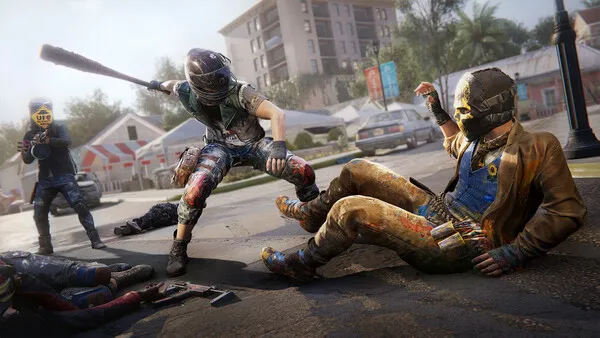
Players experience various symptoms: framerate drops, mouse stutter, freezing, input delay, and rubberbanding.
- One high-end user warned: pegged CPUs under max settings caused thermal throttling.
- Many saw CPU usage hit 100% despite strong hardware.
- Others noted input lag of up to half a second, especially when allowing uncapped FPS.
Understanding your specific issue helps target the right fix.
2. Choose the Right Launcher: Steam vs. NetEase / Loading Bay
Launcher choice can make a significant difference:
- Players report better performance when launching the game via NetEase’s dedicated launcher instead of Steam.
- One user went from unplayable stutter on Steam to consistent performance using NetEase.
If you're using Steam and encountering lag, try switching to the official loader if available, even if it means creating new characters.
3. Disable Overlays and Smooth Mouse Motion
Overlays and smoothing features can inadvertently cause stutters:
- Reddit users resolved lag by turning off mouse smoothing under the control settings.
- Disabling the Steam overlay or other overlays (Discord, GeForce Experience) lifted framerate stutter significantly.
These overlays consume CPU resources and interrupt game rendering.
4. Cap or Limit Frame Rate to Reduce Load
Unlimited framerates strain both CPU and GPU, particularly in dynamic scenes:
- Several users fixed performance issues simply by capping framerate to 30 or 60 FPS.
- A couple of players settled on 80 to 120 FPS caps to balance smoothness and stability.
Set FPS caps either in-game or via GPU utilities (e.g., Nvidia control panel).
5. Update Drivers, BIOS, and Manage Shader Cache
Keeping your system optimized is essential:
- Outdated GPU drivers often lead to crashes or stutters; updating helped many players.
- Some experienced crashes during shader compilation with 13th/14th Gen Intel CPUs; devs recommend updating BIOS or tweaking CPU ratios.
- If stuttering started after a patch, clear the shader cache—both in game documents and Steam shader cache folders.
6. Optimize In-Game Graphics Settings
High visuals are beautiful but demanding. To improve performance:
- Lower settings for textures, shadows, anti-aliasing, post-processing, and draw distance.
- Turn off V-Sync, motion blur, and frame generation.
- Set resolution or VFX to medium or low depending on your hardware.
These tweaks often result in significant smoothness gains.
7. Check Hardware Configuration: RAM, Cooling, and SSD Usage
A few hardware-level fixes can unlock performance:
- One player discovered their RAM wasn't installed in dual-channel slots; proper configuration led to a huge FPS gain.
- Running the game on an SSD rather than an HDD fixed long load times and in-game freezing for users.
- Cleaning PCIe contacts and ensuring the GPU isn’t throttling due to dust helped one player recover high FPS after a patch.
8. Monitor and Manage Background Applications
Once Human is CPU-intensive—background programs can interfere:
- Use Task Manager to close resource-heavy apps like streaming software, web browsers, or GPU overlays.
- For streaming tools or Discord, disable in-game overlays.
- Set the game process to High priority to ensure better CPU allocation.
9. Level Up Input Responsiveness
In addition to FPS, input lag matters:
- Some users noticed 0.5-second input delay when FPS was uncapped or overlays were active.
- NVIDIA Reflex users reported fixes when enabling “Reflex with Boost” and DLSS—helpful if supported by your GPU.
- Others improved responsiveness by lowering graphics and removing crosshair overlays.
10. Track Developer Fixes and Stay Prepared for Updates
Starry Studio has acknowledged performance issues and deployed phased optimizations:
- Initial updates in October 2024 targeted server performance, with compensation drops like Starchrom and exit cards.
- Mobile optimizations began rolling out in April 2025 to support higher frame rates.
- High-impact fixes—like CPU multithreading, GPU upscaling (DLSS/FSR/XeSS), memory leak patches—are planned.
- Devs also addressed specific CPU crashes via BIOS tweaks or Extreme Tuning changes.
Stay active in feedback forums and update regularly to benefit from ongoing improvements.
Conclusion
Once Human delivers a captivating and ambitious experience—but performance problems can tarnish the adventure. Luckily, the community has identified many fixes:
- Switch launchers away from Steam
- Disable overlays and mouse smoothing
- Cap framerate for stability
- Update hardware drivers and clear caches
- Optimize graphics settings and hardware (SSD, RAM, cooling)
- Manage background apps and ensure responsive input
- Follow dev updates that tackle optimization and server performance
With persistence and smart adjustments, you can reclaim smooth gameplay and explore the game’s promises more comfortably.