



The monolithic world of Minecraft, a universe of endless creative possibility and boundless exploration, has always been at its most vibrant when shared. While a solitary journey can be deeply rewarding, the true essence of the game's cooperative spirit, its collaborative triumphs, and its chaotic moments of shared discovery is fully realized when you invite friends into your world. Navigating the myriad of multiplayer options can, however, be a complex endeavor due to the game's evolving ecosystem across various platforms and editions. This comprehensive guide serves to demystify the process, providing a professional breakdown of every method available, from the most straightforward solutions to the most advanced technical setups, ensuring you and your companions can seamlessly embark on your next great adventure together.
Understanding the Minecraft Editions
Before delving into the methods of connection, it is paramount to understand the fundamental distinction between the two primary versions of Minecraft: Java Edition and Bedrock Edition. This division dictates which multiplayer options are available to you and your friends.
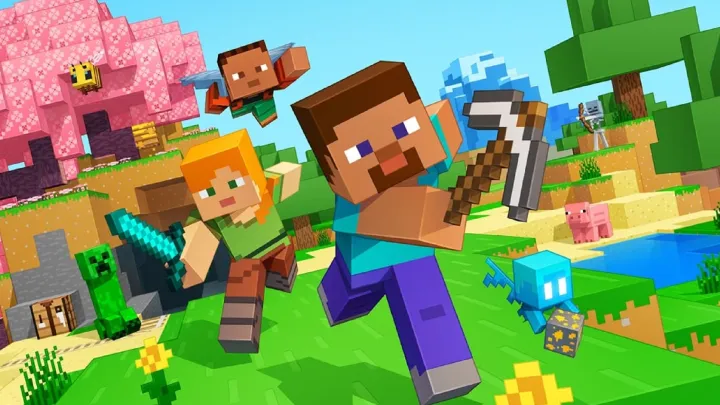
The Java Edition, exclusive to PC, macOS, and Linux, is the original version of the game. It is renowned for its vast modding community and a rich history of content creation. Multiplayer in this edition is primarily facilitated through external servers, both public and private, as well as the official Minecraft Realms service. Cross-platform play is limited to other Java players; a player on a Mac cannot play with a friend on a Windows PC using the Bedrock Edition.
The Bedrock Edition, on the other hand, is a unified version of the game developed for a wide array of devices. It is the standard for Windows 10 and 11, Xbox, PlayStation, Nintendo Switch, and mobile platforms (iOS and Android). The key advantage of the Bedrock Edition is its seamless cross-platform play. A player on an Xbox can join a friend's world from a mobile phone or a PC running the Bedrock Edition. This interconnectedness is a cornerstone of the Bedrock multiplayer experience.
Local Network Play: The Simplest Path
For friends who are in the same physical location and connected to the same Wi-Fi network, the simplest method to play together is through a local network game, also known as a LAN (Local Area Network) game. This method requires no specialized software or advanced configuration.
To start a LAN game in Java Edition, one player simply needs to launch their single-player world and press the Escape key. From the pause menu, they can select "Open to LAN." They can then choose to enable or disable cheats and set a game mode for the other players before selecting "Start LAN World." The game will then display a port number, and any other player on the same network can now join this world from their multiplayer menu. The host's computer needs to be powerful enough to run both the game and the server for the other players.
In the Bedrock Edition, local network play is even more streamlined. The host player loads their world and ensures that the "Multiplayer Game" option is toggled on in the world settings. Any other players on the same network will then see the host's world appear in their "Friends" tab within the game menu, allowing them to join with a single click.
Public and Private Servers: The Common Ground
Servers are the most popular way to play Minecraft with friends over the internet. A server is essentially a dedicated computer or a program that runs the Minecraft world 24/7, allowing players to connect at any time.
Joining a public server is a common first step for many. These servers are managed by third parties and can host hundreds or even thousands of players at once. They are often categorized by their game type, such as survival, minigames, creative, or roleplay. To join a public server, you simply need the server's IP address. In the multiplayer menu, you can add a new server, input the IP, and connect. This is a great way to play with friends while also interacting with a larger community.
To play on a private server with friends, one person needs to host it. In the Java Edition, this is done by launching a server file on their computer. This method is the most customizable but also the most technically demanding. The server host needs to have a good internet connection and a powerful computer to ensure a lag-free experience for everyone. The host must also deal with network configurations, such as port forwarding, to allow friends from outside their local network to connect.
Minecraft Realms: The Official Solution
For those who want a simple, hassle-free, and official way to host a server, Minecraft Realms is the perfect solution. Realms is a subscription-based service provided by Mojang that gives you a private server that is always online.
The main advantage of a Realm is its simplicity. The host does not need to worry about server files, IP addresses, or port forwarding. All the setup is handled directly within the game's interface. Once a player subscribes to a Realm, they can invite up to ten friends to join their world. The Realm is available 24/7, so friends can play even when the host is offline.
In the Bedrock Edition, Realms is especially useful because it provides a bridge for cross-platform play. A Realm created on a PC can be joined by friends on an Xbox, Switch, or mobile device. This unified experience is a major selling point.
To set up a Realm, the host simply navigates to the "Minecraft Realms" tab on the main menu, selects "Create New Realm," and chooses their subscription plan. From there, they can invite friends by adding them to the list of invited players. Friends who receive the invitation will see the Realm appear in their friends tab, ready to be joined.
Self-Hosting a Dedicated Server: The Power User's Choice
For players who desire complete control over their Minecraft world without the monthly subscription fee of a Realm, self-hosting a dedicated server is the ultimate option. This method provides unparalleled customization, from modifying server settings to installing complex modpacks.
The first step is to download the official server software from Mojang. This is a simple Java executable file that runs the server. More advanced users often opt for third-party server software like Spigot or Paper, which are optimized for performance and offer a wider range of features, including support for plugins.
Once the server software is obtained, the host must configure it. This involves editing a configuration file to set the game mode, the world name, and other technical parameters. This is where the host can customize the experience, whether it's a simple survival world or a highly specialized minigame server.
The most significant technical hurdle in self-hosting is port forwarding. This process involves configuring your router to direct traffic from a specific port on the internet to the computer running the server. Without this, your friends will not be able to connect. Port forwarding can be complex and depends on the specific model of your router, but many online guides can walk you through the process. Once the port is forwarded, friends can connect using your external IP address.
The Rise of Virtual LANs: Free and Flexible Solutions
For those who are unable or unwilling to configure port forwarding, virtual private network (VPN) services offer a clever workaround. These programs, such as Hamachi, create a virtual local network over the internet. Essentially, they trick your computer and your friends' computers into thinking they are on the same local network, even if they are thousands of miles apart.
To use this method, all players need to install the same VPN software and join the same virtual network. Once connected, one player can host a LAN game from their single-player world just as they would in a local network setting. The other players can then join the game from their multiplayer menu, as the host's world will appear as a local game.
The primary advantage of this method is that it bypasses the need for port forwarding entirely, making it very accessible for players without technical networking knowledge. However, it is important to note that these services can sometimes be less stable than a dedicated server and can introduce latency, as all traffic is routed through a central service.
The Console and Mobile Multiplayer Experience
For players on consoles, tablets, and phones, the process of joining a friend's world is often the most intuitive due to the unified Bedrock Edition.
On Xbox and PlayStation, the multiplayer experience is integrated with the console's respective online gaming services. To play with a friend, you simply need to have them on your console's friend list. From the world selection screen, you can see which of your friends are currently in a world and join them directly. You can also send invitations to friends to join your world, and they can accept the invitation from their console's notification system.
Similarly, on Nintendo Switch, multiplayer is facilitated through the Nintendo Switch Online service. Players can join their friends' worlds directly from their friend list, with the added benefit of cross-platform play with other Bedrock players.
On mobile devices and Windows 10, the Bedrock Edition makes playing with friends incredibly simple. If a friend has a world open and is connected to the internet, their world will appear in the "Friends" tab on your game menu. You can also join by entering a friend's gamertag. This seamless connectivity is a core feature of the Bedrock Edition and is one of the main reasons it has become so popular on these platforms.
Advanced Considerations for a Smooth Experience
Regardless of the method you choose, a few expert tips can enhance your multiplayer experience and ensure a smooth, enjoyable session.
Communication is key. Use voice chat, whether through a service like Discord or the game's built-in chat, to coordinate your actions. Planning a build, a mining expedition, or a large-scale project is much easier when you can talk to your friends in real time.
Server performance matters. If you are self-hosting a server and experiencing lag, consider optimizing your server's settings. Reducing the view distance, limiting the number of mobs, or installing performance-enhancing plugins can make a significant difference. If you are on a public server, a lower ping is usually a good indicator of better performance.
Community and modpacks. For the Java Edition, many communities have curated modpacks that bundle together dozens of mods to create a specific type of experience, from a high-fantasy adventure to a technology-driven industrial world. Playing on a server with a pre-configured modpack can introduce you and your friends to a new and exciting way to play Minecraft.
In conclusion, the journey to playing Minecraft with friends is a flexible one, offering solutions for every level of technical expertise and every type of player. Whether you are using a simple local network connection, a convenient Realm, a powerful dedicated server, or a virtual LAN, the joy of building, exploring, and creating alongside your friends remains a consistent and deeply rewarding experience. The right path for you and your companions is the one that best suits your needs, your technical comfort, and your shared vision for a new, collaborative world.