







Not every game on PC supports controllers natively, and even when they do, compatibility issues often arise. Sometimes a PlayStation controller may not work properly on a Windows machine, or an older game might only support keyboard inputs. This is where controller emulator apps come into play.
A controller emulator lets you map, customize, and simulate controller inputs so your PC can recognize them correctly. Whether you’re using an Xbox controller, a PlayStation DualShock, or even a generic third-party gamepad, these tools make sure everything runs smoothly.
In this article, we’ll take a deep dive into the top 5 controller emulator apps for PC in 2025, exploring their strengths, weaknesses, and overall performance. From casual gamers who just want their controller to work, to professionals who need precise input mapping, these apps cover a wide range of needs.
1. DS4Windows
Overview
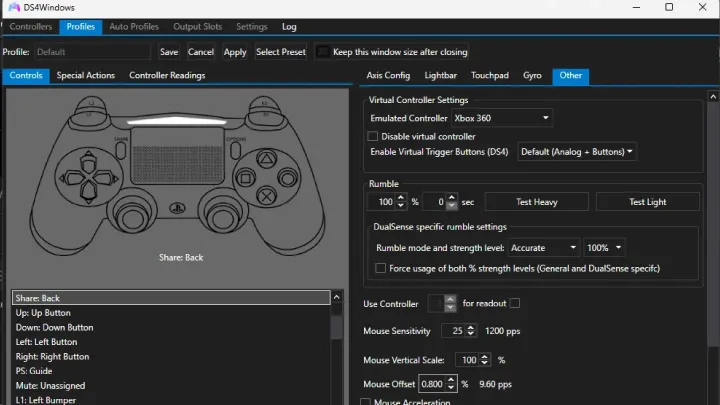
DS4Windows is one of the most popular PlayStation controller emulators for PC. It allows your DualShock 4 or DualSense to emulate an Xbox controller, making it compatible with nearly all PC games.
Strengths:
- Excellent support for PS4 and PS5 controllers.
- Wide customization (button mapping, sensitivity, touchpad features).
- Supports macros and profiles.
- Free and open-source.
Weaknesses:
- Occasional issues with updates on newer Windows builds.
- Requires setup and configuration for best performance.
Review:
DS4Windows is a must-have for PlayStation users who want seamless compatibility with Windows games. Its custom profiles and deep settings make it ideal for gamers who want control over every input. While beginners may find setup a bit confusing, once configured, it works flawlessly.
2. x360ce (Xbox 360 Controller Emulator)
Overview
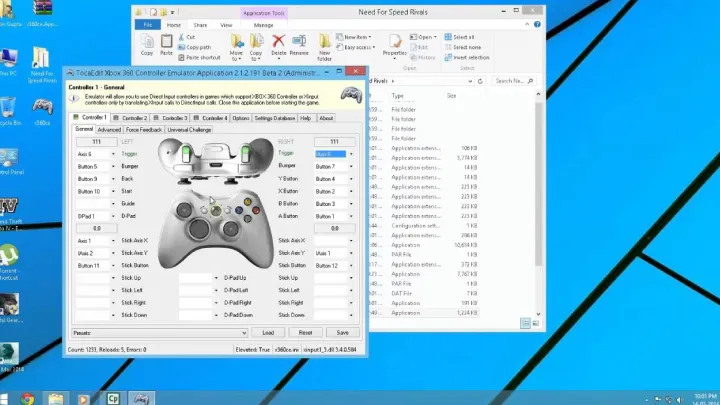
x360ce is a lightweight tool that emulates an Xbox 360 controller, making non-Xbox gamepads work with PC games. It is especially useful for older titles that only recognize Xbox 360 controllers.
Strengths:
- Simple and efficient emulator.
- Great compatibility with older PC games.
- Free and open-source.
- Supports multiple controllers.
Weaknesses:
- Interface looks outdated.
- Requires manual setup for some games.
- Limited advanced customization compared to DS4Windows.
Review:
x360ce is a lifesaver for gamers using generic or older controllers. It transforms unsupported gamepads into Xbox controllers, ensuring games run smoothly. While it’s not as feature-rich as modern emulators, it remains highly effective for retro and legacy gaming.
3. reWASD
Overview
reWASD is a premium controller remapping tool that works with Xbox, PlayStation, and even Nintendo controllers. It offers professional-grade customization for both gaming and productivity.
Strengths:
- Full controller remapping with advanced options.
- Supports multiple devices, including keyboard and mouse remapping.
- Allows combo macros and shift mode (assigning multiple functions).
- Sleek, modern interface.
Weaknesses:
- Paid software (free trial available but limited).
- Complex for beginners.
Review:
reWASD is one of the most powerful and flexible controller emulators available. While it comes at a cost, its deep customization makes it perfect for hardcore gamers and streamers who want maximum control over inputs. For those who need professional features, reWASD is worth every penny.
4. JoyToKey
Overview
JoyToKey is a long-standing favorite for gamers who want to map controller inputs to keyboard and mouse actions. It works with virtually any controller and is lightweight.
Strengths:
- Maps any controller to keyboard/mouse.
- Lightweight and easy to set up.
- Highly customizable profiles.
- Supports older and obscure gamepads.
Weaknesses:
- Outdated interface.
- Requires manual configuration for each game.
- No built-in modern features like vibration or touchpad support.
Review:
JoyToKey is a simple yet reliable solution for gamers who want to use controllers in games that don’t support them natively. Its strength lies in flexibility, though it requires manual setup. It’s best suited for older PC games, indie titles, and emulators.
5. Steam Input (Built into Steam)
Overview
Steam has its own built-in controller emulator called Steam Input, which supports a wide variety of controllers, including Xbox, PlayStation, Switch Pro, and generic gamepads.
Strengths:
- Built into the Steam client (no extra software needed).
- Excellent compatibility with Steam games.
- Full button remapping and community-shared profiles.
- Supports gyro, touchpads, and macros.
Weaknesses:
- Limited to Steam games (with partial support for non-Steam titles).
- Can be confusing to navigate at first.
- Requires Steam running in the background.
Review:
Steam Input is an excellent all-in-one solution for PC gamers who primarily play on Steam. It eliminates the need for third-party software, while offering extensive customization and community-created profiles. For Steam users, it’s arguably the easiest and most reliable choice.
Strengths and Weaknesses of Controller Emulator Apps
Strengths
- Compatibility: Lets unsupported controllers work with PC games.
- Customization: Advanced remapping, macros, and sensitivity adjustments.
- Cross-Controller Support: Use PlayStation, Nintendo, or third-party controllers on Windows.
- Accessibility: Allows disabled players to create custom setups for comfort.
Weaknesses
- Complexity: Some apps require technical setup.
- Paid Features: Tools like reWASD cost money for full access.
- Stability Issues: Updates to Windows or games may break compatibility.
- Performance Impact: Some tools run in the background and consume resources.
Conclusion
A reliable controller emulator app is essential for any PC gamer who wants flexibility in how they play.
- If you’re a PlayStation controller user, DS4Windows is the best free option, offering excellent customization.
- If you have an older or generic controller, x360ce ensures compatibility with almost any game.
- For professional gamers and streamers, reWASD offers unmatched remapping power, though it comes at a cost.
- For those who want a simple mapping tool, JoyToKey remains a solid lightweight choice.
- If you mostly play on Steam, Steam Input provides seamless integration with community support.
No matter your setup, these top 5 controller emulators ensure you can play games the way you want—on your terms, with your favorite controller.