
War Thunder, the acclaimed military MMO by Gaijin Entertainment, offers thrilling combined-arms combat across air, land, and sea. But beneath its immersive gameplay lies a persistent technical challenge: performance instability. From launch failures and frame rate drops to mid-match crashes and audio glitches, players across platforms have reported issues that disrupt the experience. This article explores War Thunder’s optimization crisis in depth, breaking down the problems and offering solutions across ten key phases—from installation to long-term system maintenance.
1. Installation Problems and Launcher Failures
Installing War Thunder should be simple, but many players encounter issues before even reaching the battlefield. The launcher may fail to open, freeze during updates, or get stuck analyzing files indefinitely.
Common causes include antivirus interference, corrupted installation files, or network socket errors. Error codes like 8222000B often point to connection initialization failures.
Solutions:
- Run the launcher as administrator.
- Temporarily disable antivirus and firewall.
- Reinstall the launcher from the official website.
Conclusion: A smooth installation is the foundation of a stable experience. Fixing launcher issues early prevents future complications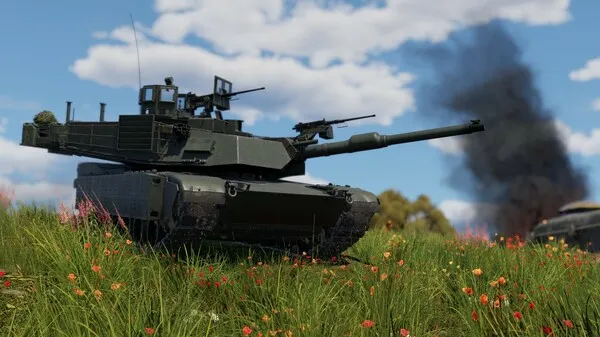 .
.
2. Game Won’t Launch After Updates
After major updates, War Thunder sometimes refuses to launch. Players report the game hanging on startup or crashing immediately after pressing “Play.”
This is often due to corrupted patch files, incomplete downloads, or conflicts with system security settings. Steam users are particularly affected.
Solutions:
- Use the “Check Files” option in the launcher.
- Launch the game directly from the installation folder.
- Update your operating system and graphics drivers.
Conclusion: Updates should improve gameplay, not break it. Verifying files and ensuring system compatibility is essential.
3. Crashes During Gameplay
Crashes mid-match are among the most disruptive issues. They can occur during loading screens, combat, or even while browsing menus in the hangar.
Triggers include memory leaks, GPU overload, and background process interference. Some players experience crashes when switching game modes or maps.
Solutions:
- Lower graphics settings to reduce system strain.
- Close unnecessary background applications.
- Monitor system temperature and usage with diagnostic tools.
Conclusion: Stability during gameplay is non-negotiable. Optimizing your system and managing resources helps prevent crashes.
4. Low FPS and Stuttering
Even on high-end rigs, War Thunder can suffer from low frame rates and stuttering, especially during intense battles or on graphically demanding maps.
Performance bottlenecks often stem from poor GPU optimization, high-resolution textures, and CPU overload during large-scale engagements.
Tips to boost performance:
- Adjust settings in your GPU control panel (NVIDIA/AMD).
- Lower resolution and disable anti-aliasing.
- Set War Thunder to high priority in Task Manager.
Conclusion: Smooth frame rates are crucial for competitive play. Customizing settings can dramatically improve performance.
5. Lag and Network Instability
Lag spikes and rubberbanding ruin immersion and accuracy. These issues may be server-side but often stem from local network problems.
Challenges include high ping due to distant servers, packet loss from unstable connections, and ISP throttling during peak hours.
Fixes:
- Use a wired Ethernet connection instead of Wi-Fi.
- Change DNS servers to Google or Cloudflare.
- Avoid downloads or streaming while playing.
Conclusion: Lag is a silent killer in War Thunder. A stable connection ensures responsive controls and fair combat.
6. Sound Glitches and Audio Dropouts
Sound is a tactical tool in War Thunder. Missing engine noises, gunfire, or voice chat can compromise situational awareness and reaction time.
Audio issues may arise after updates, from incorrect output settings, or due to driver conflicts. Inconsistent volume levels are also common.
Solutions:
- Reinstall or update sound drivers.
- Set the correct audio output device in Windows and game settings.
- Check the system mixer to ensure War Thunder isn’t muted.
Conclusion: Audio is more than ambiance—it’s intel. Fixing sound issues restores immersion and tactical advantage.
7. Compatibility with Older Systems
As War Thunder evolves, older PCs struggle to keep up. Players with legacy hardware face frequent crashes, poor performance, and long load times.
Problems include inability to run newer maps, freezing during loading, and graphical glitches due to unsupported features.
Optimization tips for older systems:
- Use the lowest graphics preset.
- Disable shadows, reflections, and post-processing effects.
- Optimize the operating system by disabling background services.
Conclusion: Older systems can still run War Thunder with the right tweaks. Prioritize performance over visuals.
8. Steam Integration Issues
Steam users often face unique problems, such as failed account linking, update errors, and overlay conflicts that cause crashes.
These issues usually stem from misconfigured account settings or interference from Steam’s overlay and cloud sync features.
Fixes:
- Launch War Thunder directly from the install folder.
- Disable Steam overlay in game properties.
- Re-link your Gaijin account via the official website.
Conclusion: Steam integration should be seamless. Managing account links and overlays resolves most platform-specific issues.
9. Graphics Driver Conflicts
Outdated or incompatible graphics drivers are a major source of instability. War Thunder’s frequent updates demand up-to-date drivers for optimal performance.
Driver issues include black screens, texture flickering, and sudden FPS drops after installing new drivers.
Driver management tips:
- Use official tools from NVIDIA or AMD to update.
- Roll back drivers if new versions cause problems.
- Perform a clean install to remove old driver remnants.
Conclusion: Drivers are the bridge between hardware and game. Keeping them updated ensures visual fidelity and stability.
10. Long-Term Optimization Strategies
Beyond quick fixes, long-term stability requires proactive system maintenance and smart game management.
Maintenance checklist:
- Regularly clean your system registry.
- Defragment hard drives (if not using SSD).
- Monitor system health with diagnostic software.
Game-specific tips:
- Avoid experimental settings unless testing.
- Participate in forums for community fixes and updates.
- Report bugs to Gaijin for official support.
Conclusion: Optimization is an ongoing process. With regular maintenance and community engagement, War Thunder can run smoothly.
Final Thoughts
War Thunder’s technical issues—from launch failures to in-match crashes—can frustrate even the most dedicated players. But with the right knowledge and tools, these problems are solvable. This guide has explored the most common performance challenges and offered practical fixes and long-term strategies. Whether you’re a tank commander, ace pilot, or naval strategist, stable performance is the foundation of victory. Don’t let technical glitches hold you back—optimize, adapt, and conquer